Guide
Nginx Proxy Manager Deployment
Nginx Proxy Manager Role
Nginx Proxy Manager provides centralized reverse proxy management for homelab services. It handles internal HTTPS, SSL certificates, and hostname-based routing for services such as Nextcloud, Immich, and future applications.
What This Solves?
- Centralized reverse proxy management
- Internal HTTPS for homelab services
- Wildcard SSL certificate support
- Clean subdomain-based service routing
- Easier onboarding of future apps
- Separation of proxy and application layers
Skills Acquired
Overview
Nginx Proxy Manager (NPM) is a self-hosted reverse proxy platform that provides a web interface for managing proxy hosts, SSL certificates, redirects, and access control.
In this homelab environment, NPM is deployed in a Proxmox LXC container and runs as a Docker container on Debian 12. It acts as the internal reverse proxy for services such as Nextcloud and future self-hosted applications, while also managing SSL certificates for internal domain access. NPM's standard ports are 80 for HTTP, 443 for HTTPS, and 81 for the admin interface.
Official site: Nginx Proxy Manager
Setup documentation: Nginx Proxy Manager Setup Documentation
Purpose
The Nginx Proxy Manager LXC was deployed to solve several problems within the homelab environment:
- Centralized reverse proxy management through a web UI
- SSL certificate management for internal services
- Clean internal access to services using subdomains
- Simplified onboarding for future applications
- Separation of proxy services from the main TrueNAS and application hosts
- Support for wildcard certificates using DNS challenge
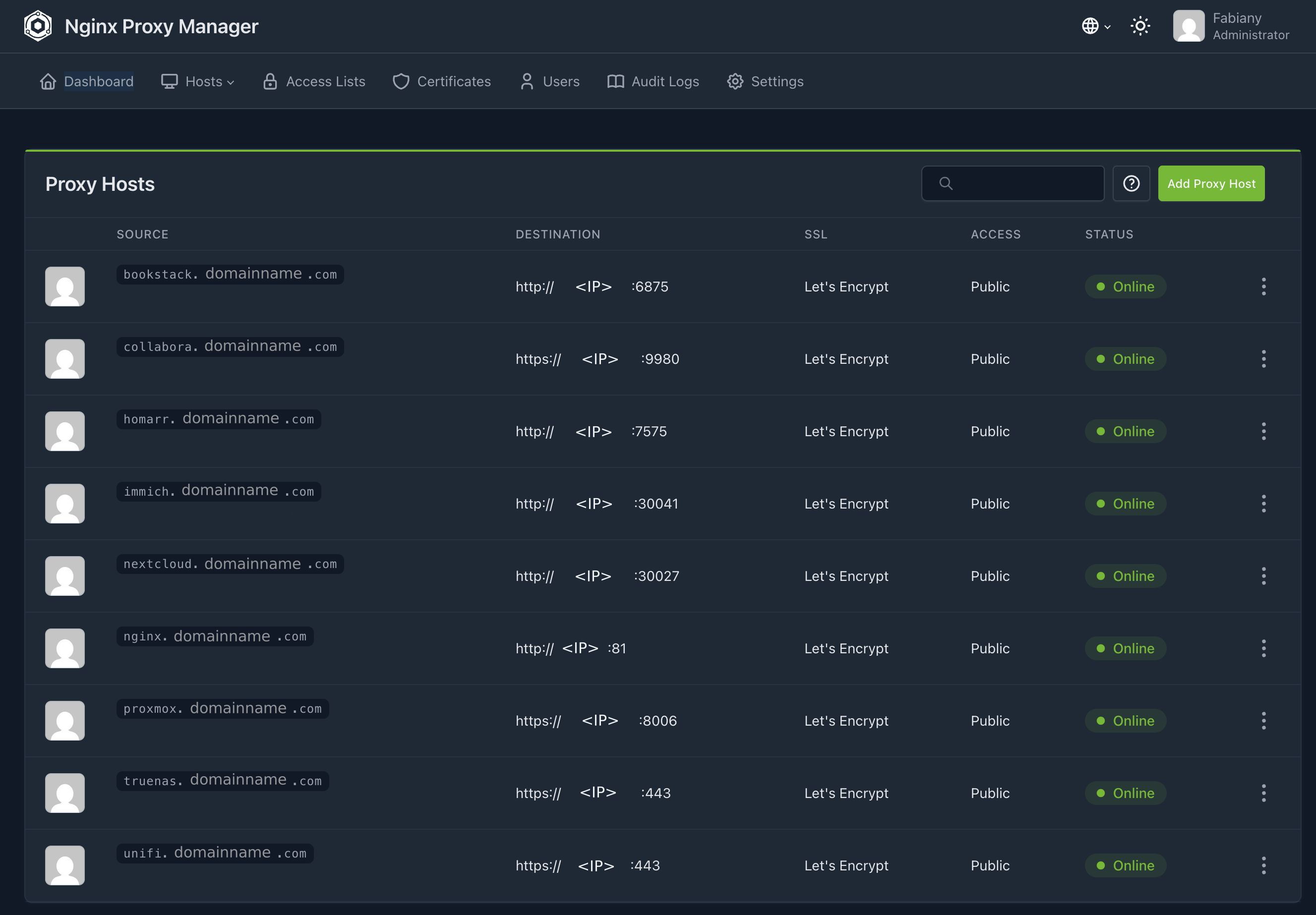
This design allows internal services to be reached using names like:
nextcloud.domainname.comimmich.domainname.comproxmox.domainname.comunifi.domainname.com
while routing all traffic internally through the NPM LXC.
Services Running on Nginx Proxy Manager
Nginx Proxy Manager is deployed as a Docker container inside a Debian 12 Proxmox LXC.
Primary functions include:
- Reverse proxy host management
- SSL certificate issuance and renewal
- Internal HTTPS termination
- Proxy routing to internal services
- Centralized management of future homelab subdomains
In this homelab, NPM currently serves as the reverse proxy layer for internal applications and is intended to become the front-end entry point for all major self-hosted services.
Infrastructure Context
This Nginx Proxy Manager instance runs in a dedicated Proxmox LXC container.
- Proxmox LXC ID: 100
- OS: Debian 12
- Application runtime: Docker
- Application: Nginx Proxy Manager
- Container IP: 192.168.1.11
NPM receives internal DNS traffic from the UniFi Gateway Ultra and forwards requests to the correct service based on hostname.
High Level Architecture

Deployment Steps
1. Download the Debian 12 LXC Template in Proxmox
Before creating the LXC container, Proxmox needs a container template.
In Proxmox: Select the node → Open local storage or the storage configured for templates → Open CT Templates → Click Templates → Search for a Debian 12 template → Download the Debian 12 standard template. Proxmox documentation states you can download, list, and manage container templates directly from the web interface.
2. Create the Debian 12 LXC Container
Create a new LXC container in Proxmox using the Debian 12 template.
Recommended configuration
- CT ID: 100
- Hostname: nginx or npm
- Template: Debian 12 standard
- Disk: based on your storage needs
- CPU / RAM: light allocation is usually enough for homelab reverse proxy use
- Network: Static IP recommended
Make sure the container can reach the internet so Docker packages can be installed.
3. Start the LXC and Update the System
Open the LXC console and run:
apt update && apt upgrade -y
This brings the Debian container fully up to date before installing Docker.
4. Install Docker
For your setup, you used the Debian package:
apt install docker.io -y
That installs the Docker engine from Debian's repositories.
After installation, enable and start Docker:
systemctl enable docker
systemctl start docker
systemctl status docker
5. Install Docker Compose Support
Depending on the Debian image and package state, Compose may already be available as the Docker plugin. If not, install it:
apt install docker-compose-plugin -y
Then verify:
docker compose version
Nginx Proxy Manager's official documentation provides a docker-compose.yml based deployment workflow and uses docker compose up -d to start the stack.
6. Create the Nginx Proxy Manager Directory
Create a working directory for the stack:
mkdir -p /opt/nginx-proxy-manager
cd /opt/nginx-proxy-manager
This keeps the Docker Compose file and persistent data organized.
7. Create the Docker Compose File
Create a docker-compose.yml file:
services:
  app:
    image: 'jc21/nginx-proxy-manager:latest'
    restart: unless-stopped
    ports:
      - '80:80'
      - '443:443'
      - '81:81'
    environment:
      TZ: 'America/New_York'
    volumes:
      - ./data:/data
      - ./letsencrypt:/etc/letsencrypt
This is the standard SQLite-based deployment pattern shown in the official Nginx Proxy Manager setup documentation. The official example maps ports 80, 443, and 81, sets a timezone, and mounts persistent volumes for data and Let's Encrypt certificates.
8. Start Nginx Proxy Manager
From the same directory:
docker compose up -d
Then confirm the container is running:
docker ps
The official setup docs use this same command to launch the stack.
9. Access the NPM Web Interface
Open: http://IP:81
Port 81 is the admin web interface port used by Nginx Proxy Manager. From there, complete the initial login and password change.
10. Configure Internal DNS
On the pfSense firewall (Now using UniFi Gateway Ultra), create internal A DNS records that point your subdomains to the NPM LXC IP.
Example:
nextcloud.domainname.com→ Nginx IPimmich.domainname.com→ Nginx IPunifi.domainname.com→ Nginx IP
This ensures internal traffic resolves to NPM first, then gets forwarded to the correct backend service.
Do an nslookup of the domain name to confirm it resolves to the Nginx IP.

11. Configure Wildcard SSL
NPM can request Let's Encrypt certificates. Your design uses Cloudflare only for DNS challenge validation, not as a traffic proxy.
- Certificate target:
*.domainname.com - Provider: Let's Encrypt
- Validation: DNS Challenge via Cloudflare API token
NPM's core feature set includes built-in Let's Encrypt support, and its setup/guide documentation is built around SSL-enabled reverse proxy hosting.
12. Create Proxy Hosts
For each internal service, create a new Proxy Host in NPM.
Example for Nextcloud:
- Domain Name: nextcloud.domainname.com
- Scheme: http or https depending on backend
- Forward Hostname / IP: internal service IP
- Forward Port: application port
- Block Common Exploits: enabled
- Websockets Support: enabled if required
Example for Collabora:
- Domain Name: unifi.domainname.com
- Forward Hostname / IP: Internal service IP
- Forward Port: Application port
- Websockets Support: enabled
Operational Notes
- NPM is not the application host; it only routes traffic.
- SSL is terminated at NPM unless a backend requires end-to-end HTTPS.
- Cloudflare is only used for DNS challenge validation in this architecture.
- No homelab services are intended to be publicly exposed.
- Remote access is expected to occur over VPN when needed.
Troubleshooting
NPM web UI does not load
Check:
docker ps
docker logs <container_id>
ss -tulpn | grep -E '81|80|443'
Proxy host works over HTTP but not HTTPS
Check:
- Certificate assignment
- DNS resolution
- Let's Encrypt issuance status
- Cloudflare API token permissions
Service gives socket or websocket errors
Enable Websockets Support in the proxy host. This is especially important for apps like Collabora.
Changes made but routing still fails
Restart the stack:
docker compose down
docker compose up -d