Guide
Docker Testing VM Deployment
Docker VM Role
This VM is used as a dedicated Docker testing environment for evaluating self-hosted services before promoting them into a more permanent production deployment. It provides a flexible sandbox for spinning up containers, testing integrations, and validating whether an application is worth long-term use.
What This Solves?
- Safe environment for testing Docker containers
- Pre-production validation of self-hosted apps
- Centralized experimentation for new services
- Reduced risk before production deployment
- Faster evaluation of dashboards, automation tools, and documentation platforms
- Reusable Docker host for homelab experimentation
Skills Acquired
Overview
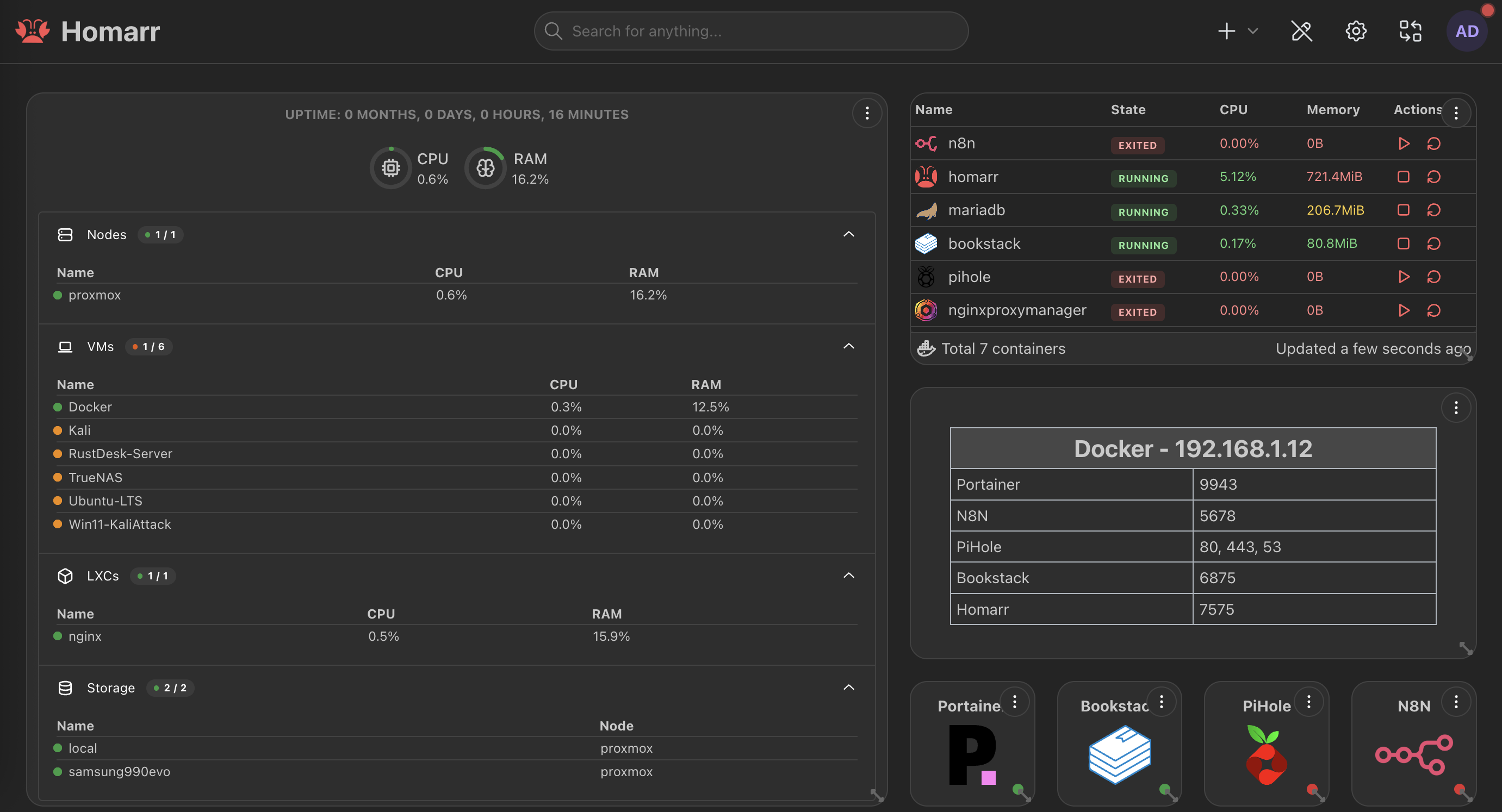
This VM serves as a dedicated Docker testing environment for self-hosted applications. Rather than deploying every new service directly into production, this VM is used to quickly evaluate containers, test functionality, review resource usage, and decide whether an application deserves a permanent role in the homelab.
In this environment, the VM is used to run a variety of Docker-based services including Homarr, Portainer, n8n, BookStack with MariaDB, and Pi-hole. The goal of this VM is experimentation, validation, and service review before a more stable production deployment is considered.
Purpose
The Docker testing VM was deployed to solve several problems within the homelab environment:
- Provide a safe sandbox for testing Docker applications
- Avoid cluttering production systems with temporary services
- Evaluate dashboards, automation tools, and internal apps before long-term deployment
- Validate configuration requirements for future production services
- Centralize Docker-based testing in a single reusable VM
Services that prove useful here can be documented, hardened, and later promoted to a dedicated production host or LXC with proper backups and monitoring; those that do not fit can be torn down without affecting other infrastructure.
Services Running on This VM
This VM is used to test a variety of Docker containers depending on current homelab needs. It is explicitly an evaluation environment, not a production server—containers may be added, removed, or reconfigured frequently.
Current services include:
- Homarr — Dashboard aggregation and homelab homepage
- Portainer — Container visibility and management via web UI
- n8n — Workflow automation and integrations
- BookStack with MariaDB — Documentation and internal knowledge base
- Pi-hole — DNS-based filtering and ad blocking (testing only)
Each stack lives in its own directory under /opt/docker-apps so compose files and volumes stay isolated and easy to back up or migrate if a service graduates to production.
Infrastructure Context
This Docker testing VM runs as VM 103 on the Proxmox hypervisor.
- VM ID: 103
- Role: Docker Testing VM
- Platform: Proxmox VM
- OS: Debian Linux
- Runtime: Docker
- Purpose: Test and evaluate self-hosted containers before production deployment
The VM is given sufficient CPU and RAM to run several stacks at once without impacting other homelab workloads. Disk is sized to hold multiple compose-based apps and their data; backups of this VM are optional and focused on preserving only the compose definitions and important volume data for services under evaluation.
Deployment Steps
1. Create the VM in Proxmox
Create VM 103 in Proxmox. Install Debian Linux, assign CPU, RAM, disk, and a network interface, and configure a static IP address. After installation, update the system:
apt update && apt upgrade -y
2. Install Docker
Install the Docker engine from the Debian repositories:
apt install docker.io -y
Enable and start Docker:
systemctl enable docker
systemctl start docker
3. Install Docker Compose plugin if needed
For compose-based stacks, install the Docker Compose plugin:
apt install docker-compose-plugin -y
Verify with docker compose version.
4. Create a base working directory for Docker stacks
Use a single parent directory so all test stacks stay organized and easy to find:
mkdir -p /opt/docker-apps
cd /opt/docker-apps
5. Organize each test service into its own folder
Create a subdirectory per service and place its docker-compose.yml (and optional .env) there. Example structure:
/opt/docker-apps/homarr
/opt/docker-apps/portainer
/opt/docker-apps/n8n
/opt/docker-apps/bookstack
/opt/docker-apps/pihole
This keeps stacks isolated and makes it straightforward to start, stop, or remove a single service without affecting others.
Service Installation Sections
Each service below is run from its own directory under /opt/docker-apps. The compose files are examples used for evaluation; adjust ports, volumes, and environment variables to match your network and preferences.
Homarr
Homarr is a modern self-hosted dashboard used to centralize access to internal services and display useful widgets and system information. I tested it in this VM to evaluate whether it could serve as a single homelab homepage—linking to Nginx Proxy Manager, TrueNAS, UniFi, and other services—and to assess dashboard usability, app linking, and widget support before committing to it long term.
Sample docker-compose.yml
services:
  homarr:
    image: ghcr.io/ajnart/homarr:latest
    container_name: homarr
    restart: unless-stopped
    ports:
      - "7575:7575"
    volumes:
      - ./data:/app/data
    environment:
      - PUID=1000
      - PGID=1000
From /opt/docker-apps/homarr:
docker compose up -d
Evaluation notes: Dashboard usability is straightforward; adding tiles and linking to internal URLs works well. Widget support (CPU, storage, etc.) is useful for a quick homelab overview. Overall fit for a homelab homepage is strong—candidates for promotion to production if the rest of the stack is already behind NPM or similar.
Portainer
Portainer provides container visibility and management through a web interface, reducing the need to use the Docker CLI for everyday tasks. I ran it on this VM to evaluate ease of container management, visibility into running services, and whether it simplifies workflows compared to CLI-only usage.
Sample docker-compose.yml
services:
  portainer:
    image: portainer/portainer-ce:latest
    container_name: portainer
    restart: unless-stopped
    ports:
      - "9443:9443"
    volumes:
      - /var/run/docker.sock:/var/run/docker.sock
      - portainer_data:/data

volumes:
  portainer_data:
From the stack directory:
docker compose up -d
Evaluation notes: Portainer makes it easy to see all containers, logs, and resource usage from one place. For a testing VM with multiple stacks, the UI is simpler than switching between compose directories and CLI. Strong candidate to keep in testing or to run on a dedicated management host for the homelab.
n8n
n8n is a workflow automation platform used to automate tasks, integrations, and business logic without writing code. I deployed it here to evaluate ease of building workflows, potential automation use cases (e.g. syncing data between services, notifications), and whether it fits future production needs for homelab automation.
Sample docker-compose.yml
services:
  n8n:
    image: docker.n8n.io/n8nio/n8n:latest
    container_name: n8n
    restart: unless-stopped
    ports:
      - "5678:5678"
    volumes:
      - n8n_data:/home/node/.n8n
    environment:
      - TZ=America/New_York
      - N8N_HOST=localhost
      - N8N_PORT=5678
      - N8N_PROTOCOL=http

volumes:
  n8n_data:
From the stack directory:
docker compose up -d
Evaluation notes: Workflow editor is intuitive; connecting nodes and testing runs is straightforward. Good fit for internal automations (e.g. backup reminders, sync tasks). Whether it moves to production depends on how many workflows become critical—if so, consider a dedicated instance with backups and optional external access behind a reverse proxy.
BookStack + MariaDB
BookStack is a self-hosted documentation and wiki platform; it requires a database backend. I tested it in this VM to evaluate suitability for internal SOPs and technical documentation, ease of organizing knowledge (books, chapters, pages), and how it compares to other note/wiki platforms before committing to a long-term documentation host.
Sample docker-compose.yml
services:
  mariadb:
    image: mariadb:10.11
    container_name: bookstack-db
    restart: unless-stopped
    environment:
      MYSQL_ROOT_PASSWORD: changeme
      MYSQL_DATABASE: bookstack
      MYSQL_USER: bookstack
      MYSQL_PASSWORD: changeme
    volumes:
      - mariadb_data:/var/lib/mysql

  bookstack:
    image: lscr.io/linuxserver/bookstack:latest
    container_name: bookstack
    restart: unless-stopped
    ports:
      - "6875:80"
    environment:
      PUID: 1000
      PGID: 1000
      APP_URL: http://localhost:6875
      DB_HOST: mariadb
      DB_USER: bookstack
      DB_PASS: changeme
      DB_DATABASE: bookstack
    volumes:
      - bookstack_data:/config
    depends_on:
      - mariadb

volumes:
  mariadb_data:
  bookstack_data:
From the stack directory:
docker compose up -d
Evaluation notes: BookStack is well-suited for internal SOPs and technical docs; the book/chapter/page hierarchy makes it easy to structure knowledge. Strong candidate for production if the homelab needs a single documentation hub—run behind NPM with a proper DB backup strategy and strong DB passwords.
Pi-hole
Pi-hole is a network-wide DNS sinkhole used for filtering ads and malicious domains. I ran it in this VM only for testing—DNS filtering effectiveness, dashboard usefulness, and whether the service should eventually move to a dedicated host or stay in testing. Do not point production DNS at this instance until you have reviewed security, backup, and placement (e.g. separate VLAN or dedicated LXC).
Sample docker-compose.yml
services:
  pihole:
    image: pihole/pihole:latest
    container_name: pihole
    restart: unless-stopped
    ports:
      - "53:53/tcp"
      - "53:53/udp"
      - "8080:80"
    environment:
      TZ: America/New_York
      WEBPASSWORD: changeme
    volumes:
      - pihole_config:/etc/pihole
      - pihole_dnsmasq:/etc/dnsmasq.d

volumes:
  pihole_config:
  pihole_dnsmasq:
From the stack directory:
docker compose up -d
Evaluation notes: DNS filtering works as expected; the web dashboard is useful for viewing stats and managing blocklists. Deciding whether Pi-hole stays in testing or moves to production depends on whether you want network-wide DNS filtering and where you are comfortable hosting DNS (e.g. dedicated LXC vs this VM). If promoting, use a strong WEBPASSWORD and consider firewall rules so only intended networks use this resolver.
Management and Operations
Common Docker commands used on this VM for day-to-day management:
docker ps
docker logs <container>
docker restart <container>
docker stop <container>
docker compose up -d
docker compose down
Run docker compose up -d and docker compose down from each stack directory (e.g. /opt/docker-apps/homarr) to start or stop a single service. Use docker logs for troubleshooting startup or runtime issues.
High Level Architecture
The Docker testing VM sits alongside other homelab workloads on Proxmox. Users reach services either directly by IP and port or through the reverse proxy once stacks are promoted and added to NPM.
Users
│
Docker Testing VM 103
│
├── Homarr
├── Portainer
├── n8n
├── BookStack + MariaDB
└── Pi-hole
Troubleshooting
Container fails to start
Run docker logs <container> for the failing container. Check for port conflicts (another service already using the same port), missing or incorrect environment variables, and volume permission issues. Ensure Docker is running with systemctl status docker.
Port conflicts between services
Two stacks cannot bind the same host port. Change the left side of the port mapping in docker-compose.yml (e.g. 8081:80 instead of8080:80) and restart the stack. Use ss -tulpn to see what is listening.
Persistent volume permission issues
If a container logs permission denied on a volume, ensure the host directory or volume is writable by the user/group the container runs as (often set via PUID/PGID). Fix ownership with chown or adjust the compose file to use a different user.
DNS conflicts when testing Pi-hole
If Pi-hole is running on this VM, ensure clients are explicitly configured to use this host for DNS (or a test VLAN) so you do not accidentally override production DNS. Revert client DNS settings when you stop testing Pi-hole.
Database connection errors for BookStack
Verify that the MariaDB container is running and that DB_HOST, DB_USER, DB_PASS, and DB_DATABASE in the BookStack service match the MariaDB environment. Allow a short delay on first start for the database to be ready (depends_on does not wait for DB readiness).
Docker service not running
Run systemctl status docker. If it is inactive, start it with systemctl start docker and enable it with systemctl enable docker. Check logs with journalctl -u docker -f for startup errors.
Compose stack deployment failures
Ensure you are in the correct directory (the one containing docker-compose.yml). Run docker compose config to validate the file. Pull images first with docker compose pull if you suspect network or image name issues.
Important Notes
- This VM is intentionally used for testing; it does not guarantee production uptime. Containers may be stopped, replaced, or removed as evaluation priorities change.
- Use persistent volumes when testing app behavior so that data survives restarts and you can fairly evaluate features that depend on stored data.
- Before promoting a service to production, re-evaluate it for security (e.g. credentials, exposure), backups (DB and config), and architecture (dedicated host, LXC, or reverse proxy placement).
- Keep compose files and any
.envfiles under version control or backup so you can recreate or migrate stacks later.